Application request
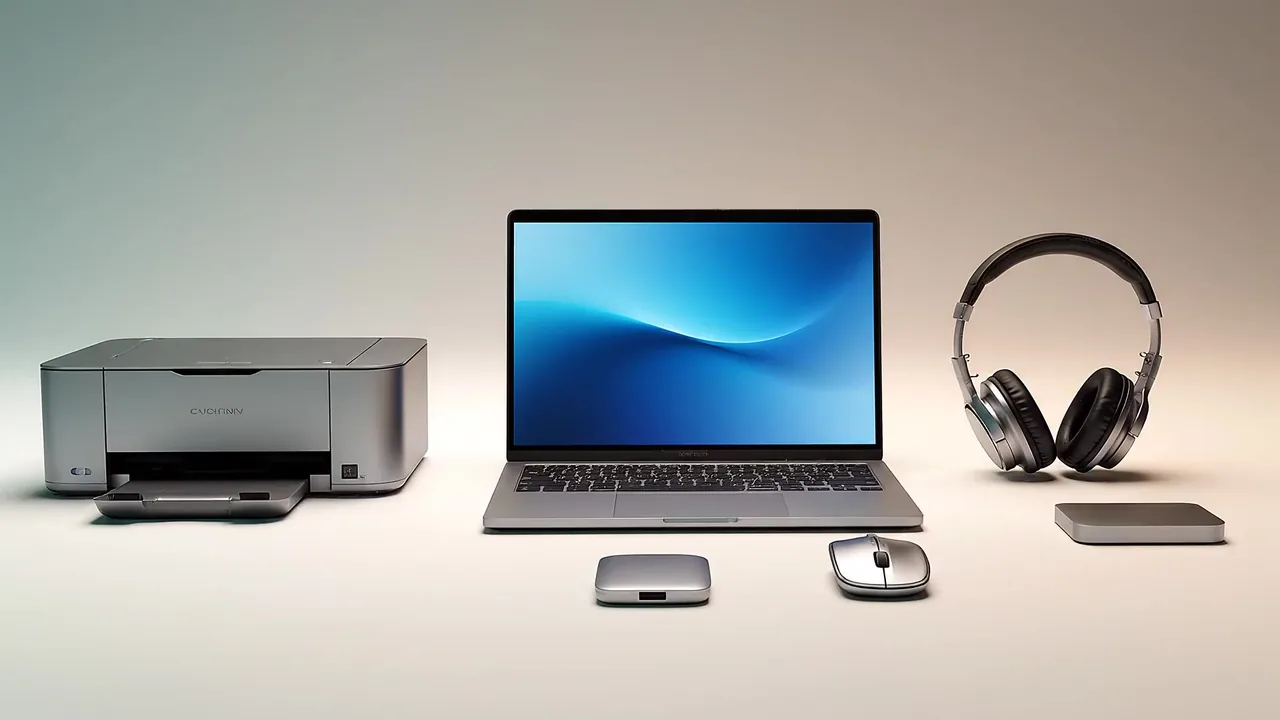
An application asks to print, play, record, display, or connect.

Clear guides to device drivers, compatibility, and troubleshooting. Learn how to identify hardware, check official update options, and understand recovery steps before making changes.
What a driver does
A device driver is software that helps an operating system use a particular piece of hardware. It can help Windows send a print job to a printer, use a wireless adapter, play sound through an audio interface, or set a display mode supported by a graphics processor.
That does not mean a driver is the answer to every device symptom. A printer can be offline because of its network connection, and sound can be routed to the wrong output even when the installed driver is appropriate. Identifying the affected device and the exact task that fails gives you a stronger starting point.
An application asks to print, play, record, display, or connect.
Windows coordinates the request and the device capability it needs.
The driver exchanges the supported instructions with the device.
The device performs the operation and returns information where applicable.
This is a simplified model, not an exact description of every device architecture. Real systems can also involve firmware, connections, services, and application settings.
The same general relationship appears in printers, audio equipment, graphics hardware, networking, and input devices: an application requests a task, Windows coordinates it, and a supported device responds. The useful next check changes with the device and symptom.
Software Layers
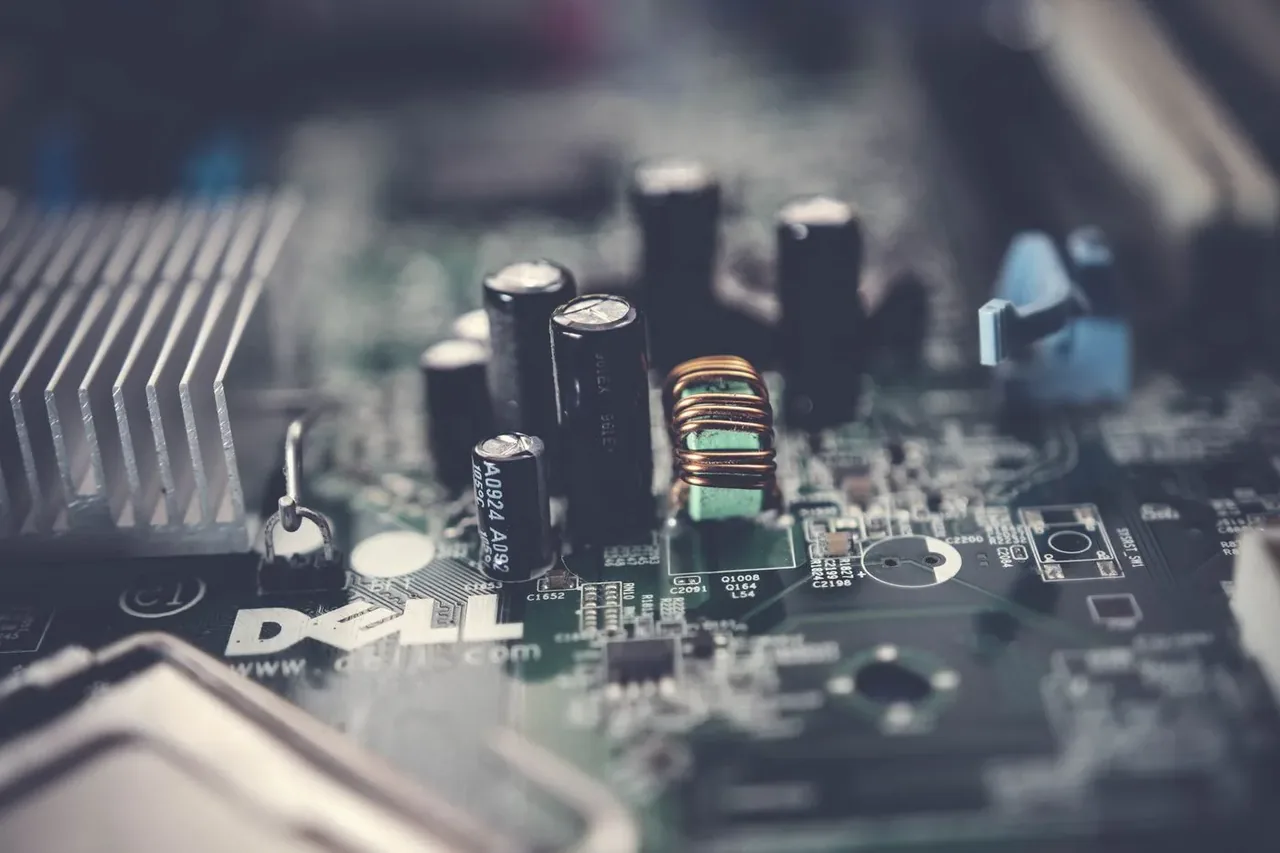
When hardware behaves unexpectedly, identifying where the instructions originate can prevent unnecessary changes. Your computer relies on three distinct layers of software. Understanding the boundary between these layers helps avoid downloading a driver when the problem is actually an application setting, or updating firmware when a simple software toggle is at fault.
The software you actively use, such as a web browser, video editor, or word processor. Applications usually request actions, like saving a file or playing a sound, through operating-system interfaces. A problem limited to one application may involve its settings, permissions, or version rather than the device driver.
Installed within Windows, drivers translate standard requests from applications into the specific technical language required by unique hardware. A driver acts as a bridge, telling Windows how to control the device.
Software stored in non-volatile memory on a device, such as a motherboard's pre-boot firmware. It handles low-level device behavior and can often be updated through a manufacturer-supported process. A firmware update is different from a Windows driver update and requires instructions for the exact device model.
Choose a focused path

Updating a driver means replacing the software Windows uses to communicate with one identified device. It can be useful when official release notes address a problem you can reproduce, add support you need, or correct a compatibility issue. A newer version number alone does not establish that a working device needs changing.
Before an update, identify the exact device, Windows version, and system architecture. For integrated laptop hardware, the computer maker’s support page is often the appropriate starting point; for a confirmed add-in component, its manufacturer may publish the relevant package. Keep the current version details and change one thing at a time so the result is understandable.
Related guides
Use Windows 11’s system information and Device Manager to record the exact device Windows sees and the driver that is installed before seeking an update.
Select a driver by the exact device, computer design, Windows release, and official source—not by a component family name or a claim that it is newest.
Install one already-verified driver package with a recovery plan, using the manufacturer’s documented installer or its documented INF folder.
Verify the task that prompted a driver update, then use the narrowest supported recovery path if that task gets worse or does not improve.
Check the Windows 11 release, edition, and System type before deciding whether an official driver package is applicable.
Use official distribution channels and Windows signature information as checks on a driver package’s origin and integrity, without mistaking them for a compatibility guarantee.
A controlled way to record what happened after a Windows 11 driver update, test the affected function, and choose a proportionate recovery action.
Prepare access, package, backup, and recovery information before changing a driver that could affect control of the PC, connectivity, display, or storage.

Driver updater software compares installed driver information with the catalogue it has available and may propose replacements. A recommendation can be a prompt to investigate, but it is not a diagnosis: the tool cannot fully know a computer’s model-specific validation, attached equipment, firmware level, or the reason a particular version was selected.
Windows Update and the original PC or device manufacturer are useful places to verify a proposed change. If a tool identifies a version as older, compare the device model and release notes with the official source before acting. A stable device may have no reason to change, while a specific issue may justify a focused update.
Related guides
How to use Windows Update, Device Manager, and a manufacturer support page as distinct tools rather than interchangeable update buttons.
Questions that help separate a specific, verifiable driver recommendation from a broad software marketing alert.
Why an alert about an older driver is a prompt to investigate, not a finding that a PC is broken or unsafe.
How to save a specific official Windows 11 driver package and its identifying details before a network or essential-device recovery is needed.
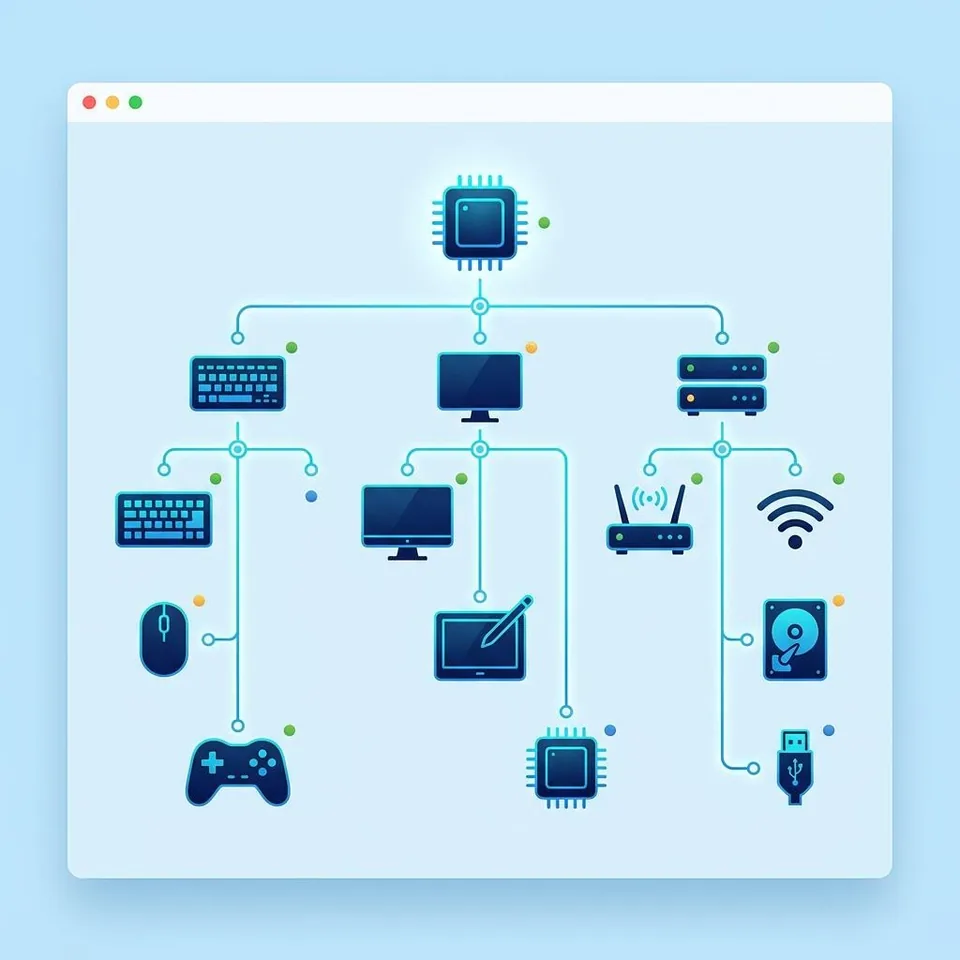
Device Manager is a Windows tool for viewing recognized hardware and inspecting device status, driver details, and identifiers. It is useful for gathering evidence: a category, device name, status message, provider, version, and hardware ID can make a support page or a troubleshooting step more precise.
A warning icon or unfamiliar entry is a clue rather than a complete diagnosis. A device may be listed yet still have a cable, power, selected-output, application, or hardware problem. Read the full status before selecting Update, Disable, Uninstall, or Roll Back, particularly for display, network, storage, and input devices.
Related guides
Open Device Manager in Windows 11, navigate its category tree, and identify the entry that deserves closer inspection.
Use Device Manager Properties to capture the facts needed to investigate a specific Windows device safely.
Read Device Manager warning information, distinguish an unknown device from an observed issue, and choose a safe next action.
Match a Windows 11 driver action to the evidence, then test the result and retain a recovery path.
Connected Environment
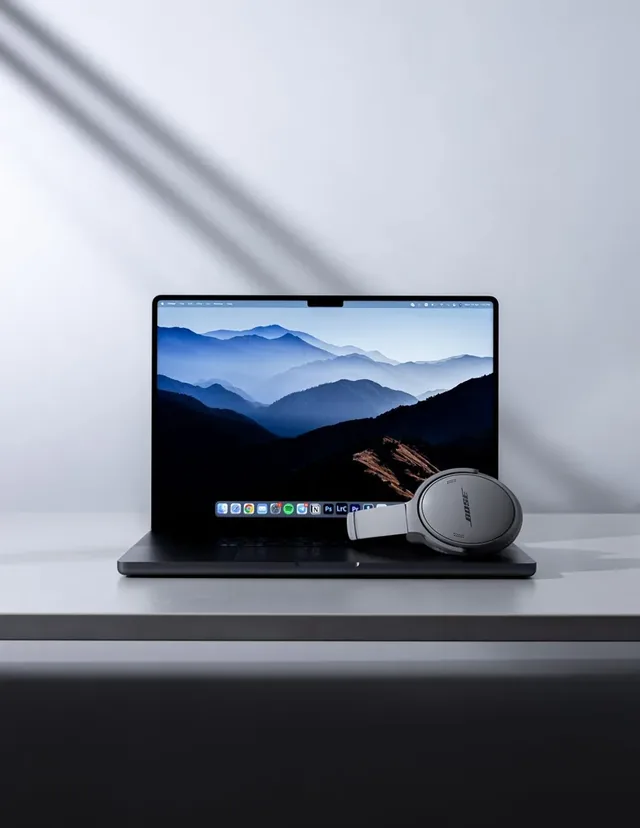
A modern workspace often combines a core computer with external monitors, wireless audio gear, and networked input devices. Each connection type requires a different handling approach from the operating system, and diagnosing a problem starts with identifying how the device communicates with Windows.
Bluetooth headsets and speakers rely on the computer's internal wireless adapter to communicate. Sudden silence often stems from pairing states, battery levels, or incorrectly selected Windows playback devices, rather than a failure of the audio hardware itself.
Built-in trackpads, webcams, and internal laptop keyboards can use model-specific controllers and software. Check the computer manufacturer's support information before replacing those components with a generic package.
Standard monitors typically do not require dedicated software to display an image. The computer's internal graphics processing unit (GPU) handles the output resolution, refresh rate capabilities, and multi-monitor extended desktop arrangements.
Modern printers often communicate over a local Wi-Fi router rather than a direct USB cable. A dropped connection or offline status is frequently a network interruption, an IP address change, or a jammed print queue, not a missing software package on the personal computer.
Category guides
Start with the kind of device and learn how to distinguish a likely software question from a connection, settings, or hardware question.
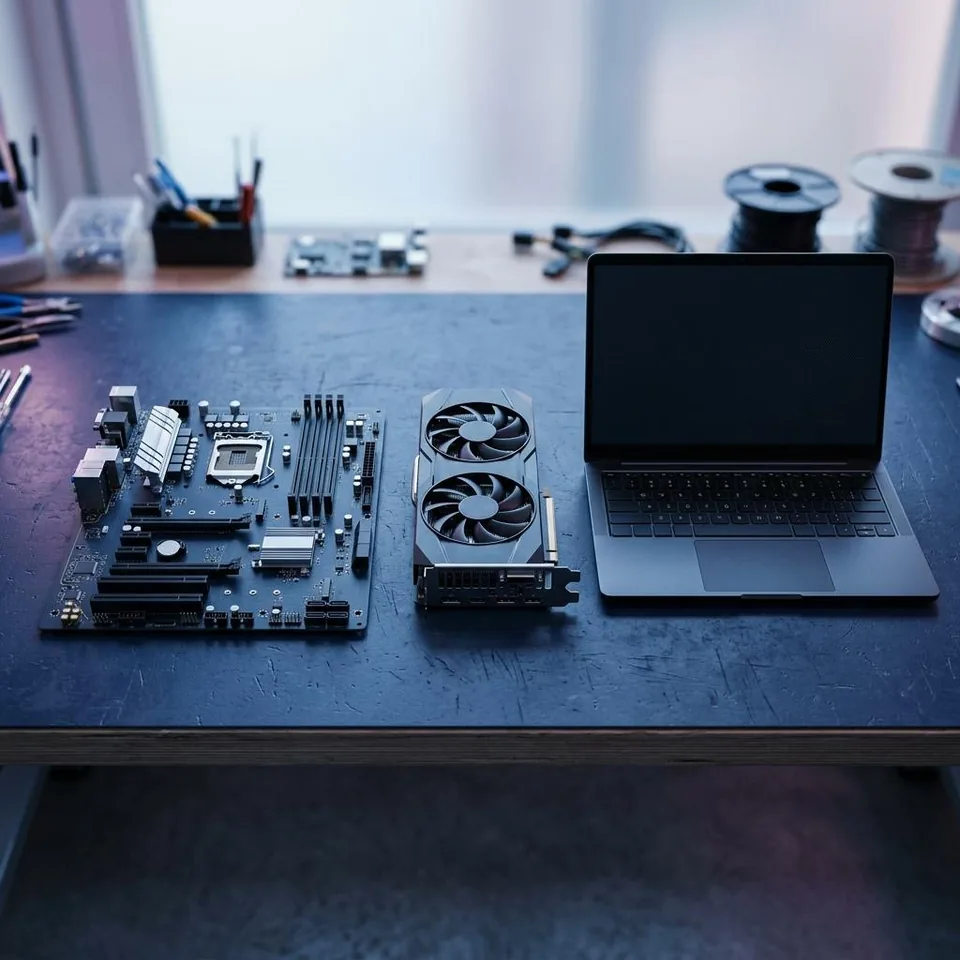
A practical Windows 11 guide to motherboard, chipset, storage, network, USB, and platform driver troubleshooting.
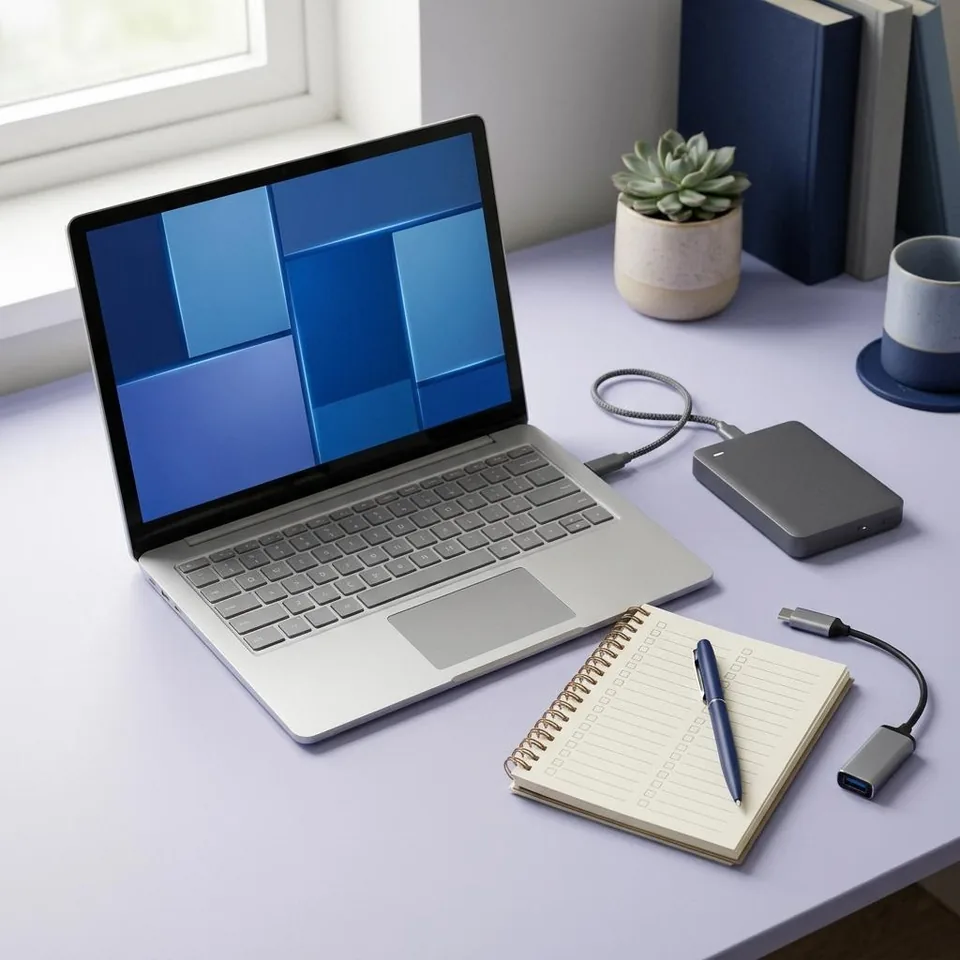
A practical Windows 11 guide to diagnosing and updating the model-specific drivers, firmware-adjacent software, and settings that make laptop hardware work.
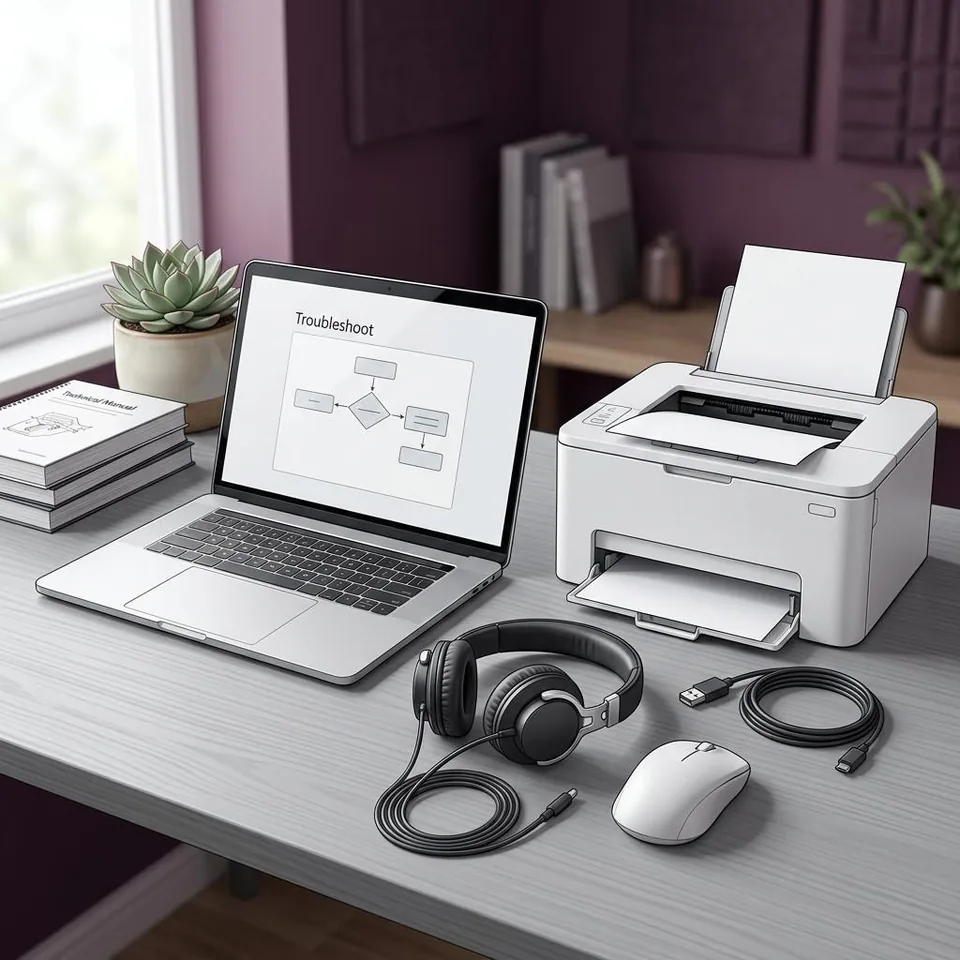
A practical Windows 11 guide to printer queues, ports, drivers, network discovery, scanning, and evidence-led troubleshooting.
A practical Windows 11 guide to troubleshooting speakers, microphones, USB interfaces, HDMI audio, Bluetooth headsets, and the driver layer between them.

How Windows 11 graphics drivers, displays, renderers, and recovery choices fit together.
Troubleshooting Paths
Before making administrative changes to your computer, record what is actually failing. A methodical approach can narrow the likely causes of unexpected hardware behavior and help you avoid an update that does not address the observed issue.
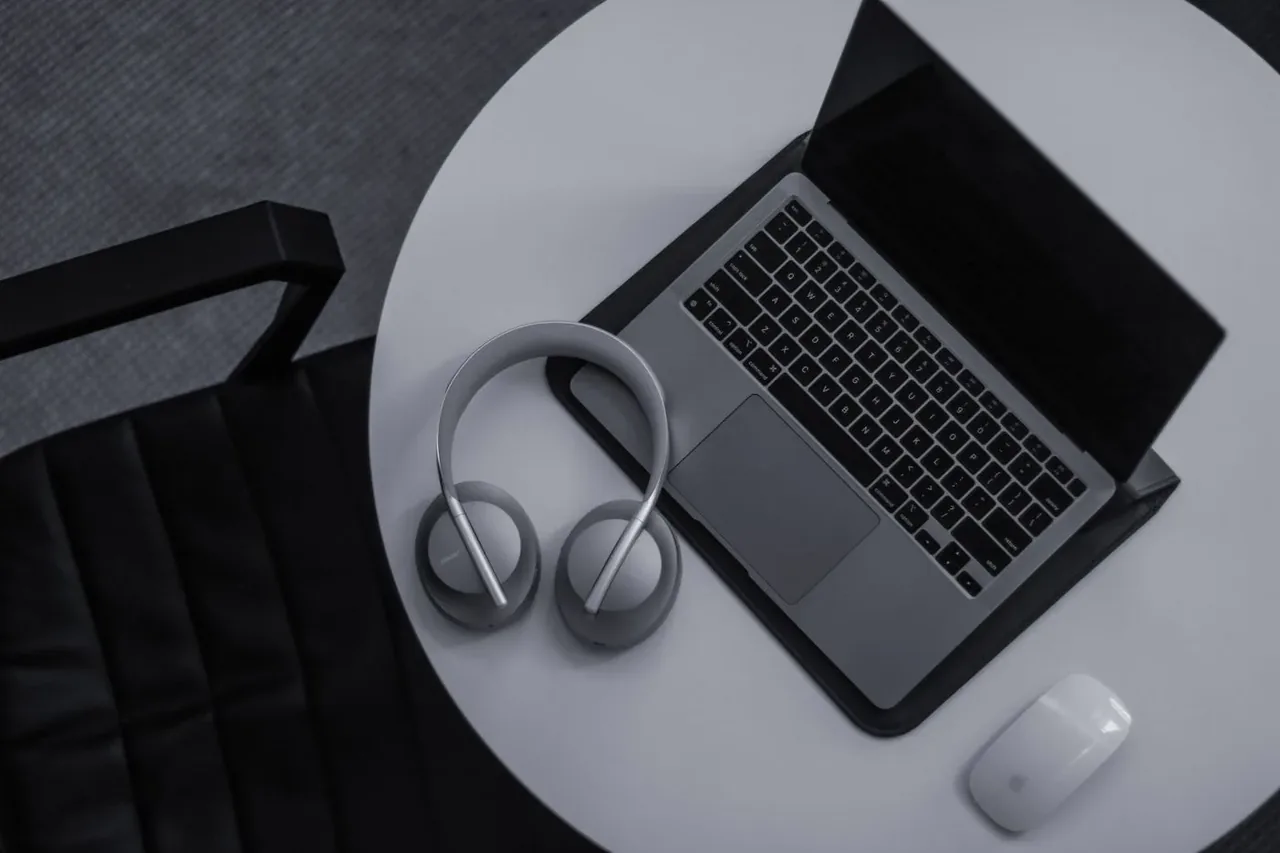
Verify the physical connection or pairing status. Then, check the default playback device settings and volume mixer in Windows before assuming a sound card or audio device failure. Sometimes, an application simply has its volume muted independently.
Review audio guidesCheck whether the printer has power, paper, and a stable connection to your local network router. Inspect the print queue for paused or failed jobs before modifying installed software or adding new ports; cancel only jobs you recognize and no longer need.
Explore printer topicsIf the display looks stretched, distorted, or blurry after a major system change, confirm the correct native display mode is selected in Windows Display Settings. If resolution options are entirely missing, the graphics component may need targeted attention.
Read graphics tutorialsEnsure the touchpad has not been disabled via a hardware toggle or a keyboard shortcut function key. Check Windows Settings under Devices to confirm it is enabled and recognized, and clean the physical surface of the trackpad.
See laptop articlesBefore installing any new software that modifies how your operating system interacts with physical hardware, it is critical to establish a reliable recovery method. Drivers operate at a privileged level within Windows, meaning an incorrect or incompatible package can cause widespread system instability, display loss, or network disconnection. Taking precautions ensures that a troubleshooting attempt does not inadvertently create a larger problem.
The most fundamental preparation is backing up your important files independently, followed by verifying that Windows System Restore is enabled and manually creating a new restore point. A restore point captures a snapshot of many system files, registry configurations, and installed drivers. While it is a useful tool, a restore may occasionally fail, it does not cover all system changes, and it is not a substitute for a true file backup. If an installation introduces new problems, attempting to revert the system to this state is a practical first step, though it cannot guarantee complete recovery.
Additionally, always ensure you have a secondary way to access the internet—such as a smartphone, a tablet, or a second computer. If you are modifying a network adapter driver and the installation fails, you will lose the ability to download a replacement or search for troubleshooting steps on that machine. Being cut off from documentation during a failure can turn a minor inconvenience into a major obstacle.
Finally, download a known-working offline installer package for your device and save it locally to your desktop or downloads folder before you begin. Having the previous version immediately accessible means you can reinstall it without needing an active internet connection. Document your current version number in a notepad or take a screenshot. Crucially, isolate your variables: only update one device at a time, test it thoroughly, and observe the results before moving on to another component.
Creates a snapshot of system configurations. A helpful recovery tool, though it is not a file backup and may occasionally fail to restore all components.
Keep a smartphone or second computer nearby. If a network driver fails, you will need a separate device to research solutions or download alternatives.
Always download a known-working offline installer for your device before making changes, so you can revert even without an internet connection.
The internet is filled with unofficial repositories and aggregator sites offering hardware drivers. However, installing software that controls physical hardware requires absolute trust in the source. There are several practical places to look for a hardware update, and the appropriate choice often depends on your computer type and the specific problem you are trying to solve.
Avoid search engine results that lead to generic driver download directories. These unofficial sites frequently bundle unwanted software, provide outdated or beta versions, or incorrectly label files to capture search traffic. Trusting a third-party directory with system-level software introduces unnecessary risk to an otherwise stable computer.
The operating system provides an automated pipeline for many driver updates. Microsoft distributes packages submitted by manufacturers for broad distribution. If a device is functioning normally, allowing Windows Update to manage it in the background is generally a practical baseline approach.
If you are using a pre-built desktop computer or a laptop, their official support website is your definitive source. Laptops, in particular, often use customized versions of generic hardware to manage thermals and battery life. A standard driver downloaded directly from the component maker might fail to install or break specific laptop features like proprietary hotkeys or power management profiles.
If you built your own custom desktop computer from individual parts, or if you added a retail component (like a new discrete graphics card, a capture card, or a specialized audio interface), you should obtain software directly from that specific component's manufacturer. This ensures you receive the control panels and feature updates designed for your exact hardware.
Locate the specific hardware component that is experiencing issues after the recent change.
Right-click the device and select Properties, then navigate to the dedicated Driver tab at the top of the window.
Click 'Roll Back Driver'. Windows will uninstall the problematic package and restore the previously cached version.
If the computer cannot boot normally due to the new software, restart into Safe Mode to perform these exact same steps without loading the broken driver.
Even with careful preparation and correct source verification, an update can occasionally introduce unforeseen complications. A new version might conflict with a specific legacy application you use, or it might contain a newly discovered bug that affects your exact hardware configuration. When this happens, Windows provides a built-in mechanism to undo the change gracefully and restore your previous functionality.
The "Roll Back Driver" feature is located within the Windows Device Manager. By opening the properties of the affected device and navigating to the Driver tab, you can instruct Windows to uninstall the current package and immediately restore the previously installed version. This process is generally seamless, takes only a few moments, and preserves the prior configuration settings.
However, Roll Back is only available if a previous version was installed and retained by Windows in its driver store. It is not a magical fix for hardware that has never functioned correctly on your machine. If the rollback button is grayed out and unclickable, Windows does not have a historical package to revert to. This limitation is exactly why saving a local copy of a known-working version is an important preparatory step before making administrative changes.
If a new driver causes a severe issue—such as a blue screen error upon restarting or a completely black display—you may need to access Windows in Safe Mode. Safe Mode loads the operating system using only basic, generic drivers, intentionally bypassing the problematic third-party software. From within Safe Mode, you can reach Device Manager and perform the rollback or a complete uninstallation safely, allowing you to boot normally on the next restart.
Hardware compatibility involves significantly more than simply knowing the brand and model name printed on the box of your device. Software packages are compiled for specific system architectures and operating system versions, and forcing an incorrect match can result in immediate installation failures or severe system instability.
First, you must distinguish between 32-bit and 64-bit system architectures. Modern Windows 11 installations are exclusively 64-bit, but Windows 10 was broadly available in both configurations. A 32-bit driver cannot operate within a 64-bit operating system, and a 64-bit driver will categorically fail to install on a 32-bit system. Always confirm your system type in the Windows "About your PC" settings menu before attempting to download and install packages manually.
Second, hardware revisions are a frequently overlooked complication that frustrates many troubleshooting attempts. Manufacturers often quietly update the internal physical components of a product during its commercial lifespan without changing the external model number or retail packaging. For example, a "Version 1.0" wireless network adapter might use an internal chipset manufactured by Broadcom, while the "Version 2.0" of the exact same product model might use a chipset from Realtek. These two physical revisions might require different software packages to function, despite looking identical on the outside.
When downloading from a manufacturer's official support site, carefully check the physical label on your device for terms like "Rev 1.0", "v2", or a specific serial number prefix. Downloading a driver listed on the webpage may not address your issue if it was written for a different hardware revision.
Attempting to cross-install architectures will result in an immediate error. Always verify via system settings.
Model: AW-1200 (Hypothetical)
Chipset A
Chipset B
Look for the revision number on the physical sticker of the device. Software intended for one revision may not be compatible with another.
When you open Device Manager to investigate a problem, you may occasionally see an entry labeled simply as "Unknown Device," accompanied by a yellow warning triangle icon. This indicates that Windows successfully detects physical hardware connected to the motherboard but cannot identify its purpose or locate a compatible driver in its repository. Guessing the device's identity based on what you recently plugged in is prone to error and can lead to incorrect software installations.
Instead, you can definitively identify the hardware using its unique Hardware ID string. By right-clicking the Unknown Device, selecting Properties, and navigating to the Details tab, you can select "Hardware Ids" from the property dropdown menu.
You will see a string of text resembling PCI\VEN_10EC&DEV_8168. This code is an industry-standard identifier used universally across computer hardware. The "VEN" (Vendor) segment identifies the specific company that manufactured the silicon chip, while the "DEV" (Device) segment identifies the exact model of that chip.
By entering this exact VEN and DEV combination into a reputable hardware identification database or a standard search engine, you can discover exactly what the device is—perhaps a specific local area network controller, a proprietary memory card reader, or an obscure motherboard chipset component. Armed with this definitive information, you can then visit the appropriate computer manufacturer's website to download the correct support package. This precise identification eliminates the need to rely on generic updater tools that might misinterpret the missing component and install bloatware.
In many scenarios, installing a new driver directly over an older version is a standard and supported procedure. The installer will typically overwrite outdated files, update the necessary registry keys, and leave your customized settings intact. However, for certain complex components—such as discrete graphics cards or specialized audio interfaces—this standard process can occasionally leave behind conflicting configuration files.
When diagnosing persistent graphical glitches, crashing applications, or audio stuttering that survives a standard update process, performing a documented uninstallation is often a recommended next step. A clean install involves removing the existing software following the vendor's instructions, restarting the computer, and then installing the new package onto a cleaner state. Be cautious when uninstalling, as some driver packages may be shared among multiple components or devices; removing them entirely might affect related hardware.
Technology lifecycles mean that eventually, every hardware manufacturer will cease providing software updates for older equipment. When a peripheral—such as a ten-year-old flatbed scanner, an early-generation drawing tablet, or a reliable older printer—reaches its official End of Life (EOL) or End of Support status, it will no longer receive new driver packages designed for modern operating systems.
This status does not immediately mean the hardware is broken or must be discarded. In many cases, Microsoft includes generic, baseline class drivers within Windows that can provide fundamental functionality for older devices. A legacy printer might still print basic text documents perfectly using a generic class driver, even if the manufacturer's customized ink-monitoring software or scanning utility is no longer compatible with the current Windows release.
If a generic driver is insufficient, attempting to install an older driver (such as a Windows 10 driver on a Windows 11 system) should only be done if the manufacturer explicitly documents support for that exact model and architecture combination. There is no generalized compatibility workaround for unsupported hardware. Over time, operating system updates or architectural changes may affect compatibility with abandoned software.
Understanding this lifecycle is crucial for cautious decision-making. If an unsupported legacy device is currently functioning adequately on a modern system, you should avoid attempting to update it with unverified third-party packages found on obscure forums. Accept its current functional state, and recognize that operating system upgrades carry the risk of breaking compatibility with that specific piece of older hardware.
The manufacturer no longer tests or releases software for new Windows versions.
Built-in Windows class drivers often keep basic functions working for years.
"If a legacy device works, do not try to fix it with unofficial software."
Educational articles
Explainer
A plain-language explanation of the software layer that lets an operating system use a particular hardware device, including what a driver can and cannot explain.
Read articleExplainer
Drivers, firmware, and applications can all affect a device experience, but they run in different places and solve different problems.
Read articleExplainer
A driver update is most useful when evidence connects an identified device and a documented change to a specific, reproducible problem.
Read articleExplainer
Version numbers do not establish compatibility: the best choice depends on the exact device, operating system, manufacturer validation, and problem being addressed.
Read articleCommon questions
No. A driver update is most useful when it addresses a documented need, such as a supported compatibility issue or a reproducible problem. Windows Update and model-specific manufacturer guidance are a practical routine for many systems.
No. It means Windows has status information to read. Open the device’s Properties, record the full message and code, and consider the device, connection, and timing before choosing an action.
No. A cable, port, power source, network, selected audio output, application permission, firmware, or the hardware itself can cause a similar symptom. Start with the simplest check that fits what you observe.
Keep the matching official installer available locally and make sure you can still connect or control the computer if the change does not work as expected. Record the current version and test one change at a time.
Transparency
This preview provides educational navigation and written guidance about device drivers, compatibility, and troubleshooting. It does not scan devices, host driver downloads, or provide a repair service.
Verified information about the site operator and funding has not been supplied for this preview. This page therefore makes no claim about ownership, advertising relationships, or funding arrangements. Technical guidance should be checked against the relevant device or computer manufacturer’s current documentation.