Skip to content

Frequently Asked Questions

Straight answers to the most common questions about device drivers.

Desktop monitor, keyboard, and headphones on a desk beside plants
Everyday device questions deserve clear, practical explanations.

Do I need to pay for driver updates?

Windows Update and most consumer hardware manufacturers provide supported driver packages without a separate download charge. Paid support or specialist enterprise licensing is different. Check the manufacturer's terms rather than paying an unrelated site to unlock an update.

Are third-party driver updaters safe?

Some are legitimate tools that save time, while others use scare tactics or bundle unwanted software. It's often safer to use Windows Update or the manufacturer's official utility.

Why is my computer suddenly having no sound?

A different selected output, mute setting, app-specific volume, connection, or unavailable audio device can all cause silence. Start with Windows Sound settings and a simple playback test. A driver change is one possible cause, especially after a documented update, but silence alone does not establish that diagnosis.

How often should I update my drivers?

Keep supported Windows security servicing current and read relevant manufacturer advisories. Consider a driver change for a security fix, supported feature, compatibility need, or a documented issue affecting your device. A higher version number alone does not require replacing a stable, supported driver.

Practical Windows driver answers

Driver questions answered with context, limits, and next steps

Short answers are useful when they point to a safe decision. They become unhelpful when they turn a complex symptom into a command to update, uninstall, or pay for software. These FAQs explain the usual reasoning behind common driver questions, including what to check first, when an update is justified, and when a driver is unlikely to be the whole story.

A safer way to use troubleshooting answers

Treat an answer as a testable suggestion, not a diagnosis delivered at a distance. Ask whether the answer matches your exact device, connection, Windows version, and timing. A generic audio answer may not fit Bluetooth headphones; a Wi-Fi answer may not fit a USB Ethernet adapter; a graphics answer may not fit a monitor that has selected the wrong input. The small facts around the symptom matter.

Before a driver change, capture the present state and choose one verification task. If the issue is a webcam, test the camera in the app where it failed. If it is printing, send a small test page. If it is a display issue, open the program that exposed it. That discipline prevents a temporary change or a reboot from being mistaken for a complete fix.

Questions lead to evidence, not panicQuestionstart with evidenceEvidenceuse the right layerLow-risk answercheck the result
Questions lead to evidence, not panic. A useful answer links a symptom to one reversible check and a clear result, rather than recommending an indiscriminate driver sweep.

Updates and sources: the questions behind “what should I install?”

Most users do not need a separate schedule for every driver. Windows Update is the normal route for routine updates, while official PC and device makers publish packages for their supported models. The decision becomes more specific when a known issue, new accessory, operating-system upgrade, or manufacturer release note matches your situation. A newer version alone is weak evidence; an exact model and relevant reason are stronger.

For built-in laptop parts, prefer the laptop maker’s support page. For a printer, use the printer maker. For an add-in graphics card, use the graphics maker after confirming the model. Avoid repositories that add their own installer around a driver or ask for payment to “unlock” an update. They can obscure what will be installed and make recovery harder. Microsoft’s Windows Update support page is a trustworthy starting point for the built-in path.

Read the detailed answers below alongside the safe update article. The aim is a supported package and a recorded rollback path, not an impressive update count.

A source follows the deviceConfirmed devicestart with evidenceTrusted sourceuse the right layerSupported packagecheck the result
A source follows the device. Windows Update, the PC maker, and the component maker each have a role. Choose based on confirmed hardware and the type of issue.
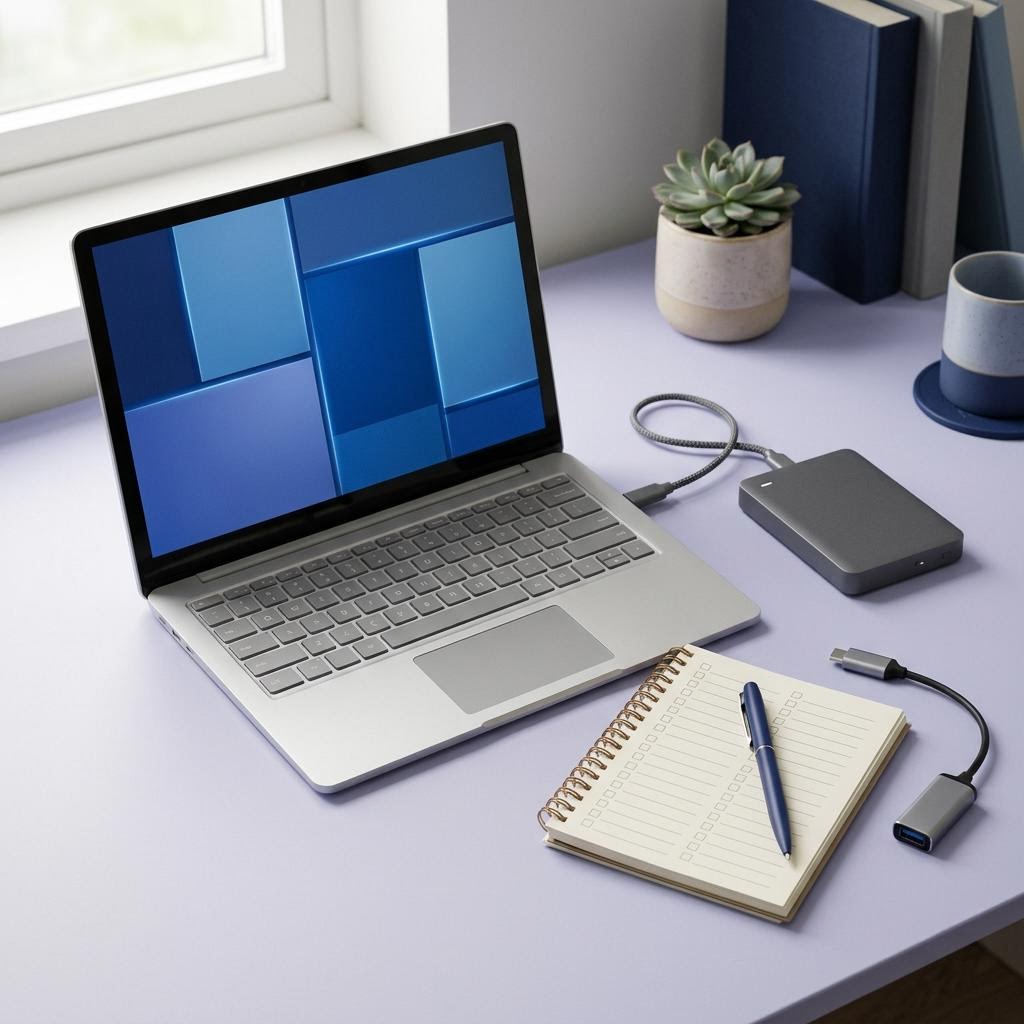
Conceptual workspace with a computer prepared for a safe driver update
Conceptual illustration. The illustration represents a measured update process with time to record the current version and verify the outcome.

Errors and symptoms: questions behind “why did this stop working?”

A warning icon, offline queue, frozen touchpad, missing sound, or blank external monitor is a starting condition. Check whether the device is physically connected, powered, selected, and visible to Windows before you change its driver. Compare another port, cable, app, or device only when that comparison is safe. It helps determine whether the issue follows the hardware or stays with one Windows configuration.

Device Manager status is valuable because it captures Windows’ view of a recognized device. Read the full code, provider, date, and version. A printer queue has a different diagnostic path because it adds network reachability and the Print Spooler service. A touchpad uses different clues because it may be affected by a function key or laptop-specific utility. Select a question that fits the symptom rather than using a single broad answer.

For a visible status, read the Device Manager warning guide. For vocabulary that appears in error dialogs, use the detailed glossary. These resources help you describe the issue accurately before escalating it.

Recovery choices: questions behind “how do I undo this?”

Rollback, reinstall, uninstall, and System Restore have different purposes. Rollback can return a previous driver when one is available. Reinstall can replace a damaged or mismatched package with an official one. Uninstall may remove a device association or package and should be used only with a clear restoration plan. System Restore can revert selected system configuration but is not a document backup. The correct word matters because it predicts what the action can reverse.

Keep a simple before-and-after record: version, source, time installed, and the test result. Do not combine a driver reinstall with registry cleaners, several optional updates, and a new peripheral if you want to understand the outcome. If an essential input, network, storage, or display device is affected, pause before an aggressive removal. Download the official package first and consider manufacturer support if access to the machine could be lost.

A clean graphics installation is an example of a recovery action that needs a reason. It can be appropriate for persistent graphics conflicts or a switch between vendors, but it is not needed because a game performs poorly once. Read the complete guide, prepare the correct official installer, and verify the original problem at the end.

Recovery needs a known way backWorking versionstart with evidenceOne changeuse the right layerRecovery optioncheck the result
Recovery needs a known way back. Record the working state, change one package, test the original task, and use the smallest appropriate recovery option if the result worsens.

Windows version and support questions

Driver compatibility depends on the Windows release and system architecture. Check these before downloading a file that seems to fit the device name. A driver can be perfectly legitimate yet not intended for your version of Windows. In particular, do not assume a Windows 11 package is an upgrade for Windows 10 or that an older package will be supported indefinitely after an operating-system change.

Windows 10 support ended on October 14, 2025. A computer can still run after that date, and a device maker may still host an older Windows 10 driver, but normal free Microsoft security updates, software updates, and technical support have ended. Replacing a driver does not restore Windows 10 to supported status. Consider a supported operating system plan separately, based on hardware eligibility and your data backup needs.

For routine servicing on a supported release, use Windows Update at a time when you can restart and confirm basic devices work. If an update creates a specific issue, record the timing and use the focused recovery path. This is more informative than disabling updates indefinitely, which can create a different set of reliability and security problems.

Detailed driver FAQs

1. Should I update every driver whenever a newer version exists?

Usually no. A version comparison only shows that another package exists; it does not establish that your computer needs it. Update when Windows, the PC maker, or the device maker has a relevant compatibility, reliability, or security reason, or when you are addressing a symptom that the release notes plausibly cover. For a stable system, routine Windows Update and model-specific manufacturer updates are a calmer baseline than bulk updates.

2. Is Windows Update enough for drivers?

It is often a good first source for routine driver delivery, especially for common hardware. Some integrated laptop features, docks, printers, and graphics components may need a package or utility from the manufacturer for model-specific features or a targeted fix. Check the exact PC and Windows version, then use the official source that supports that hardware. A package from another source is not automatically superior because its version number is larger.

3. What does a yellow triangle in Device Manager mean?

It means Windows has a status to report for that device. Open Properties and read the full message and error code before changing anything. The code may reflect a failed start, a disabled device, a resource conflict, or another condition. It is evidence to investigate with device identity, connection checks, and timing. See the yellow-triangle article for a focused sequence rather than treating the icon as proof that a download is required.

4. Can a driver cause a computer to have no sound?

It can, but it is not the only likely cause. Check the selected output device, volume, physical headset connection, monitor audio path, and app-specific audio setting. If sound vanished after an update and Device Manager identifies the audio device, compare the official PC maker audio package and consider rollback if a known change aligns with the symptom. Test speakers and headphones separately so the result is meaningful.

5. Why is my printer offline even though it is turned on?

“Offline” can describe a connection, network address, queue, or Windows communication issue. First verify the printer display, paper and error lights, cable or Wi-Fi connection, and whether another device can reach it. Then inspect the correct printer queue and any paused jobs. Restarting the spooler helps with a stuck queue but will not repair a printer that joined a different Wi-Fi network. The printer article separates those paths.

6. Should I use a third-party driver updater?

Be cautious. An updater can compare installed versions with its own database, but it cannot fully know the validation needs, firmware level, or custom configuration of your PC. Avoid tools that use urgent warnings, countdowns, payment pressure, or bundled installers. Prefer Windows Update and official manufacturer pages. If you use an official maker utility, review the proposed packages and install only items you understand.

7. What is the difference between a driver update and a firmware update?

A driver runs in Windows and mediates communication with hardware; firmware is stored on the device itself. Firmware updates may change lower-level device behavior and can have stricter power, connection, and recovery requirements. Do not substitute a driver installer for firmware or vice versa. Follow the device manufacturer’s exact procedure and model match, particularly for docks, storage, motherboards, and printers.

8. Can I roll back a driver safely?

Rollback is designed as a recovery option when a newly installed driver creates a problem and Windows retained the prior version. It is safer when you have recorded the current version, know why you are rolling back, and can test the original symptom afterward. The button may be unavailable, and rollback does not solve a cable, power, app-permission, or hardware failure. It returns a driver state; it does not diagnose every cause.

9. Why does a device work after restart but fail after sleep?

That pattern suggests a resume or power-management path, although a dock, cable, firmware, or driver can be involved. Record the exact pattern: does it happen on battery, with a dock, only after a long sleep, or only with one peripheral? Check for an official model-specific update that mentions sleep, wake, power, USB, or docking. Do not assume a clean install is required before testing the simple connection and timing variables.

10. How do I find the correct driver for an unknown device?

Open Device Manager, read the category and status, then use the Details tab to view a hardware ID if needed. Match that evidence to the official PC, motherboard, or component manufacturer support page and confirm your Windows version and architecture. Do not paste an ID into a download site and accept the first result. Hardware IDs identify a family of components; official support information establishes the correct package.

11. Does WHQL mean a driver will definitely fix my issue?

No. WHQL commonly indicates a Microsoft compatibility process, which is useful context, but it does not promise a fix for a particular printer, game, sleep problem, or device state. The release notes, supported models, and your exact symptom still matter. A correctly matched official package with a clear purpose is more useful than an impressive label attached to an unrelated download.

12. What should I do before a graphics driver clean installation?

First rule out monitor input, cable, adapter, display selection, and a normal update path. Confirm the graphics model and download the exact official package before removing anything. Read the clean-install article in full because graphics removal is a recovery technique for a stubborn or conflicted installation, not a routine tune-up. Have a restart plan and test the original display or application issue afterward.

13. Can a driver update make my computer faster?

Sometimes a targeted update can improve a specific workload or correct a bug, particularly for graphics, storage, or a new feature. It is not a general performance service. Slow startup, low storage space, browser extensions, overheating, failing hardware, and background processes have different causes. Judge an update by a stated compatibility or stability need and an observable result, not by a promise of universal speed.

14. What information should I prepare before asking for help?

Prepare the PC or device model, Windows version and system type, exact device name, connection method, complete error message, timing, current driver provider/version/date, and the steps already tried. Say what changed after each step. Remove passwords, recovery keys, personal identifiers, and private network names. This concise evidence helps an official support agent or a technically skilled helper recommend a safe next action.

15. My device is listed in Device Manager. Does that prove the hardware is healthy?

No. Listing means Windows detected a device instance, but a device can still have a status error, an unstable connection, a failed function, or a feature that an application cannot access. Read the status, test the real task, and compare another connection or application when appropriate. Conversely, a device that is absent entirely may need power, port, cable, firmware, or detection checks before a driver is the leading theory.

16. Should I download a driver from a site that recognizes my hardware ID?

Not unless it is the official manufacturer or a source the manufacturer specifically directs you to. Hardware IDs can identify a component, but third-party sites can bundle installers, promote mismatched revisions, or make their database look more authoritative than it is. Use the ID to confirm the component, then find the PC, board, peripheral, or component maker’s support page for your Windows version.

17. What if the manufacturer no longer lists a driver for my Windows version?

Treat that as compatibility information rather than a gap to fill with random downloads. The device may work with a Windows-supplied class driver, the maker may have ended support, or an operating-system upgrade may be required for a feature. Record what works today and investigate supported options. For legacy hardware, a replacement plan can be safer than forcing a package intended for a different model or release.

18. Why did Windows replace my manufacturer driver?

Windows Update can supply a compatible driver as part of routine servicing. That may resolve an issue or change a feature set, depending on the device. Record the provider and version, test the affected function, and consult the PC maker’s official support page if a model-specific feature stopped working. If the timing and evidence line up, rollback or the maker’s package may be a focused recovery path.

19. Can I delete old driver files to free space?

Do not manually delete files from Windows driver folders to create space. Those files can be shared by devices or needed for recovery, and removal can make future installation harder. If storage is low, use Windows storage tools and remove unneeded personal files or applications. Driver cleanup should only follow an official procedure for a specific driver problem, with a replacement package and restart plan.

20. Does a blue screen always mean a driver is at fault?

No. Blue screens can be associated with drivers, hardware, memory, storage, overheating, firmware, or other system faults. Capture the stop code and timing, remove recent optional hardware if safe, and seek manufacturer or qualified support for repeated crashes. Do not use a blue screen as a reason to update every driver at once; that makes the original cause harder to isolate.

21. Is it safe to disable a device in Device Manager?

Only when you understand what the device does and have a reason to test it. Disabling can help isolate an optional adapter or peripheral, but disabling an essential keyboard, display, storage, network, or system component can make the computer hard to use. Read the device category and Properties first, keep a way to reverse the change, and avoid experimentation on a machine that cannot tolerate downtime.

22. Why does my USB device keep connecting and disconnecting?

Start with physical and power checks: try a known-good cable, a different direct port, and the device without a hub or dock. Watch whether movement, battery state, or sleep triggers the behavior. If the pattern remains, check the device maker’s official firmware and driver guidance and the computer maker’s chipset or USB notes. Repeated reconnection is evidence of a changing connection, not automatic proof of a corrupt driver.

23. Do I need the newest graphics driver for every game?

Not necessarily. New graphics releases may add support or fixes for particular games, but a stable configuration can remain appropriate when the release notes do not match your needs. If you have a game-specific problem, compare its symptoms to official notes, update from the confirmed graphics manufacturer, and test that game after restart. Do not use game urgency to skip model matching or recovery preparation.

24. Can a laptop manufacturer driver be older than the chip maker driver?

Yes. Laptop makers may validate a version against the model’s firmware, power management, speakers, display, and docking behavior before publishing it. An older-looking OEM package can therefore be the more appropriate starting point for integrated hardware. If a chip maker package addresses a precise issue you have, read both sets of notes and follow support guidance rather than deciding on the number alone.

25. What should I do if an update appears to finish but the problem remains?

Do not repeat the same installation immediately. Restart if required, then test the original symptom and inspect the installed provider, date, and version to confirm what changed. Reconsider the scope: connection, device selection, app settings, firmware, or a different device may be responsible. Use the record to choose one new focused test, or escalate to the manufacturer with the result instead of stacking updates.


Still choosing a path? Return to the article library, where symptoms are grouped into focused reading routes.

Update Decisions & Timing

If my PC is working fine, should I install an optional driver update?

Generally, if your system is stable and performing as expected, optional driver updates are not strictly necessary. Optional updates often include support for newly released hardware or fix specific edge-case bugs. If you aren't experiencing the bug or adding new equipment, remaining on a stable, proven driver is a sensible approach. Security-critical updates, however, should always be installed when recommended by Windows Update or your manufacturer.

What is the difference between a recommended and an optional update?

Recommended or critical updates usually patch security vulnerabilities, resolve widespread crashes, or fix major compatibility issues with Windows. Optional updates might add minor software features, support newer game titles, or address rare bugs that only affect a small percentage of users under specific conditions. Windows Update typically downloads critical updates automatically, while leaving optional ones for you to manually select if you are actively troubleshooting a related issue.

Will updating my drivers make my computer run faster?

In most cases, a driver update will not noticeably increase general system speed. While graphics driver updates sometimes include performance optimizations for specific new video games, standard drivers for components like network cards, audio chips, or trackpads are designed for stability rather than speed boosts. Fixing a malfunctioning or outdated driver might restore normal performance if a previous bug was slowing you down, but it rarely acts as a magic hardware upgrade.

Compatibility & Hardware Matching

How do I know if a driver is compatible with my specific version of Windows?

Official driver download pages list the supported operating systems, such as Windows 10 (64-bit) or Windows 11. It is crucial to match both the OS version and the architecture, though modern consumer systems are almost exclusively 64-bit. If you rely on Windows Update, it automatically checks your exact specifications. For a step-by-step approach, read our guide on how to update device drivers safely.

Can I use a Windows 10 driver on a Windows 11 computer?

Many Windows 10 drivers work perfectly on Windows 11 because the two operating systems share a very similar underlying kernel architecture. However, this is not guaranteed for every component, especially specialized hardware or older peripherals like legacy printers. If a dedicated Windows 11 driver is unavailable, installing a Windows 10 driver is often a viable fallback, though you should monitor the device for any unexpected behavior or minor glitches.

What happens if I install the wrong driver for my device?

Installing an incorrect driver usually results in an error during installation, as the software fails to detect the matching hardware ID. If the installation does somehow proceed, the device may stop functioning, behave erratically, or cause Windows to display a blue screen error. Fortunately, Windows includes safety mechanisms like Driver Signature Enforcement and Device Manager rollbacks to help you easily recover if an incompatible driver is forcefully applied.

Finding Safe & Official Sources

Where is the safest place to download a driver if Windows Update fails?

The most reliable source is always the official support website of your computer's manufacturer (e.g., Dell, HP, Lenovo) or the specific component's manufacturer (e.g., Intel, AMD, NVIDIA). Navigate directly to their official domains and use their dedicated support or downloads section. Be cautious of third-party index sites or forums offering direct download links, as these can sometimes bundle unwanted software or host modified, insecure files.

Should I trust driver downloads that are sent to me via email or chat?

No. Legitimate driver updates are practically never distributed as direct executable attachments via email or unsolicited chat messages. If a support technician needs you to install a specific driver, they should direct you to an official, verifiable URL on the manufacturer's secure domain. Downloading executable files from unverified communications is a significant security risk and remains a common method for delivering malware or ransomware.

What does 'WHQL Certified' mean on a driver download page?

WHQL stands for Windows Hardware Quality Labs. When a driver is WHQL Certified, it means the hardware manufacturer has submitted it to Microsoft for rigorous compatibility, reliability, and stability testing. Microsoft then digitally signs the driver, confirming it meets their standards for running safely on Windows. While non-WHQL drivers (sometimes called 'beta' drivers) can still work, WHQL certification provides strong reassurance of system stability and safety.

Recovery & Troubleshooting

How do I undo a driver update if it causes new problems?

Windows includes a 'Roll Back Driver' feature precisely for this situation. Open Device Manager, right-click the malfunctioning device, and select Properties. Under the Driver tab, click the 'Roll Back Driver' button. This uninstalls the current version and restores the previously installed working driver. If the button is grayed out, Windows does not have a previous version stored, and you may need to manually download an older version. See our driver recovery guide for detailed steps on safe removal.

What should I do if a device completely disappears from Device Manager?

First, click 'Action' in the top menu of Device Manager and select 'Scan for hardware changes.' This forces Windows to poll the motherboard for newly connected hardware. If the device still doesn't appear, ensure it is physically connected properly or check for physical damage. In some cases, a device might be listed under a generic category like 'Other devices' with a warning indicator. Learn how to understand warning icons to identify the correct software.

Is it safe to uninstall a driver completely as a troubleshooting step?

Yes, it is generally safe, but you should proceed carefully. If you uninstall a critical driver, like your display or network adapter, you might temporarily lose high-resolution graphics or internet connectivity. Usually, Windows will attempt to reinstall a basic generic driver when you restart your computer, restoring core functionality. However, it is highly recommended to have the correct replacement driver already downloaded and saved to your desktop before you uninstall the current one.

Cookie preferences

No optional analytics or advertising tracking is active in this current preview. These controls store your preference locally on this device. Read the Cookie Policy.

Customize